
Free Image Converter Online — PNG, JPG & WebP
Convert PNG to JPG, JPG to WebP, WebP to PNG and more — instantly in your browser. No uploads. No limits. 100% free.
- 100% Private
- No Upload
- Unlimited
- Mobile-Friendly
Drag & drop your images here
Or click to browse — supports PNG, JPG, JPEG, WebP
Queue: 0 images
Convert PNG, JPG and WebP images online with our free image converter
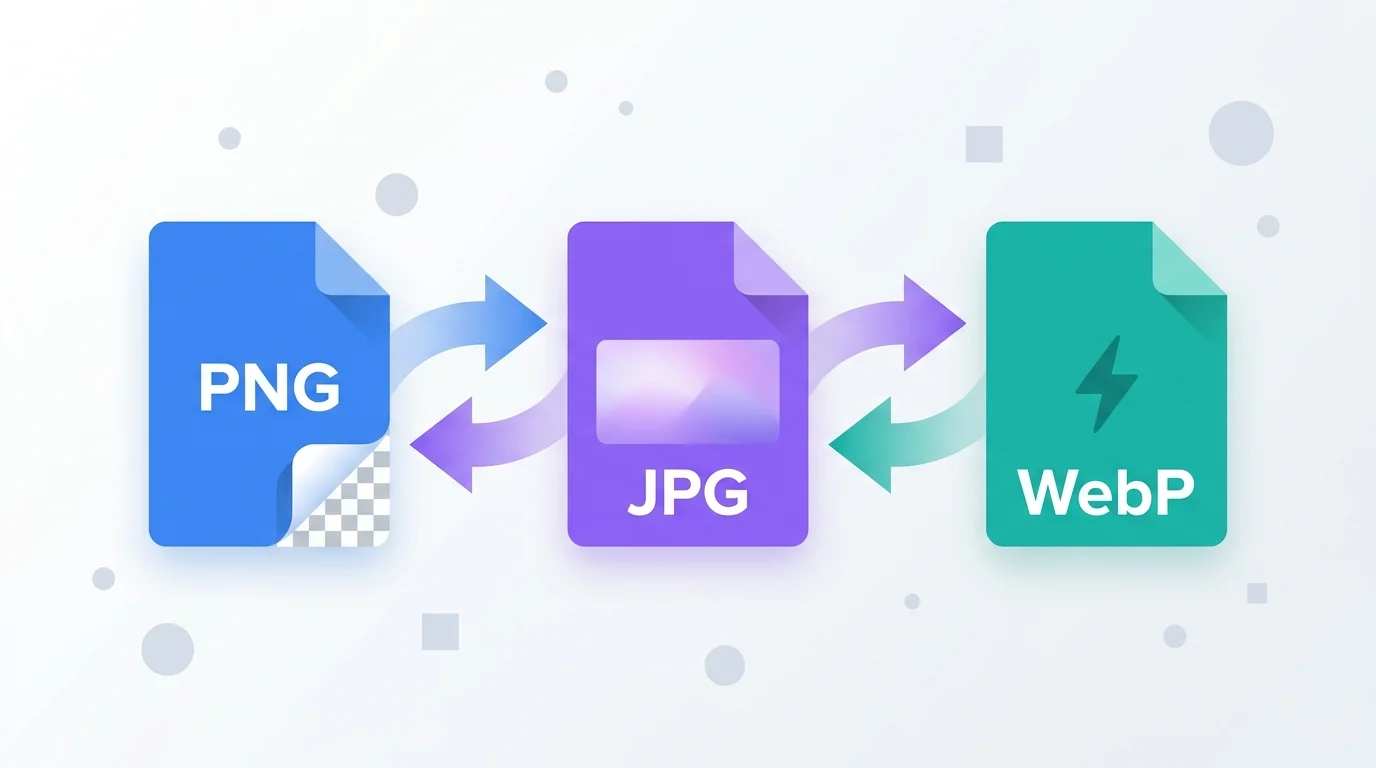
Looking for a free image converter? Convert PNG to JPG, JPG to WebP, WebP to PNG, and more – instantly in your browser. No uploads, no signup, no watermark. This online image converter is fast, private, and 100% free.
Drop an image into the tool above, pick your output format (PNG, JPG, or WebP), and download. Because the image converter runs directly inside your browser, your files stay on your device.
How to convert PNG to JPG
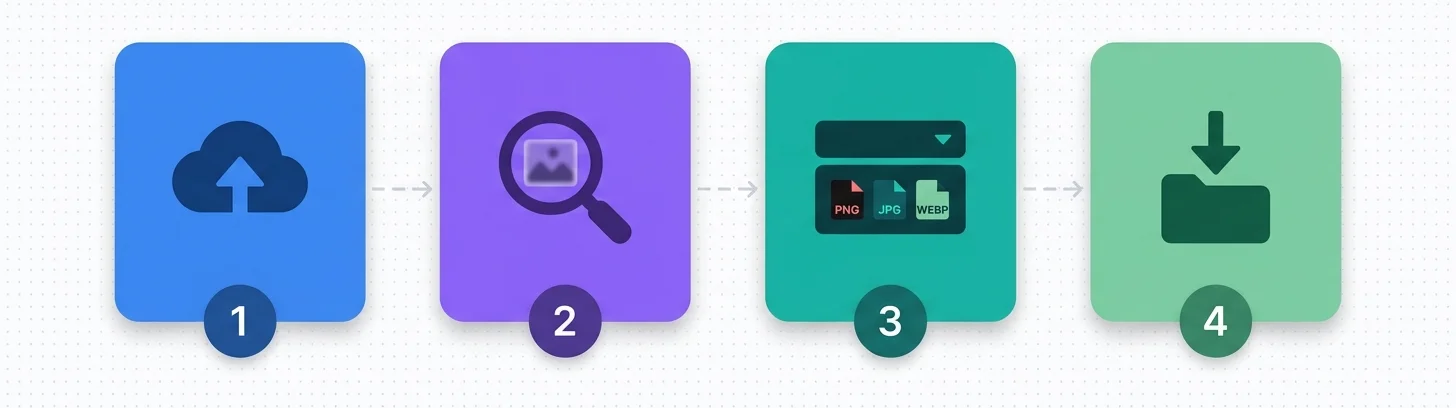
Converting PNG to JPG is the fastest way to shrink large image files — JPG uses smarter compression for photos, so the same picture often becomes 70–80% smaller.
Steps:
- Drag your PNG file into the upload area above (or click Browse Files).
- Choose JPEG as the target format.
- Adjust the quality slider — 80–90% gives you great-looking images at small file sizes.
- Click Download to save your new JPG.
Use this when you don’t need a transparent background and you want faster page loads, smaller email attachments, or quicker uploads to social media.
How to convert JPG to WebP
WebP is Google’s modern image format. It produces files 25–35% smaller than JPG at the same visual quality, which is great for website speed and Core Web Vitals.
Steps:
- Upload your JPG file.
- Select WebP as the output format.
- Set the quality between 75 and 90.
- Download the converted WebP file.
WebP works in all modern browsers (Chrome, Edge, Firefox, Safari, Opera). If you run a website or blog, switching your JPG images to WebP can noticeably improve your Google PageSpeed score.
How to convert WebP to PNG
Sometimes you need to go the other way — for example, when an app or platform doesn’t accept WebP files, or you need a PNG with transparency.
Steps:
- Drop your WebP file into the converter.
- Pick PNG as the target format.
- Click Download.
This works perfectly for converting saved WhatsApp stickers, downloaded WebP graphics, or any image that you need in a more widely supported format.
How to convert PNG to WebP
If you’re optimizing a website, converting heavy PNG screenshots and graphics to WebP can dramatically cut page weight while keeping transparency support.
Steps:
- Upload your PNG.
- Choose WebP as the target format.
- Adjust quality (80% is a good default).
- Download.
You’ll usually see a file size drop of 50% or more compared to the original PNG.
PNG vs JPG vs WebP — which format should you use?
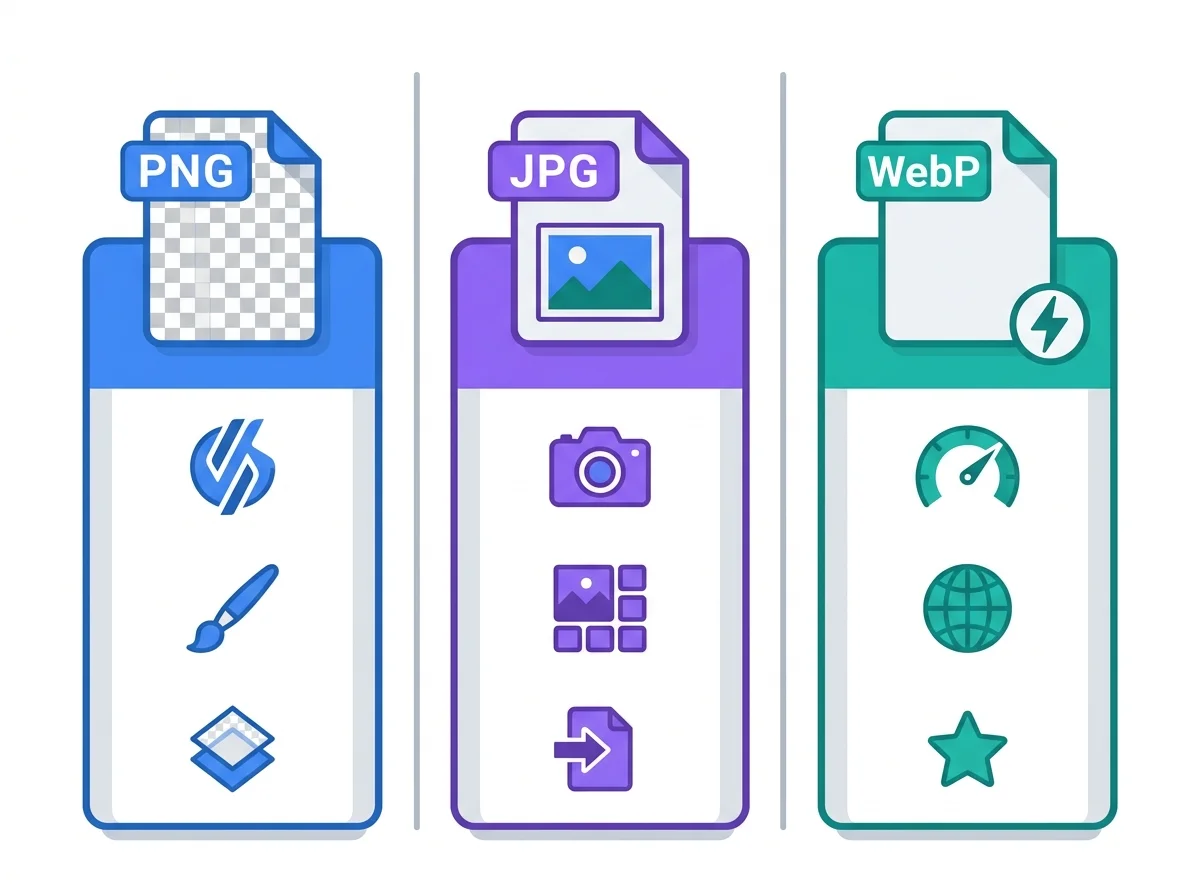
Each format has its own strengths. Here’s a quick guide:
Choose PNG when you need:
- Transparent backgrounds (logos, icons, overlays)
- Sharp text and graphics
- Lossless quality (no compression damage)
Choose JPG / JPEG when you need:
- Smaller files for photos and realistic images
- Universal compatibility (works everywhere)
- Quick uploads and email attachments
Choose WebP when you need:
- The smallest possible file size
- Faster website loading speeds
- Transparency support and small file size in one format
For most modern websites, WebP is the best choice — unless you specifically need PNG for transparency on a platform that doesn’t support WebP yet.
Why this free image converter is different
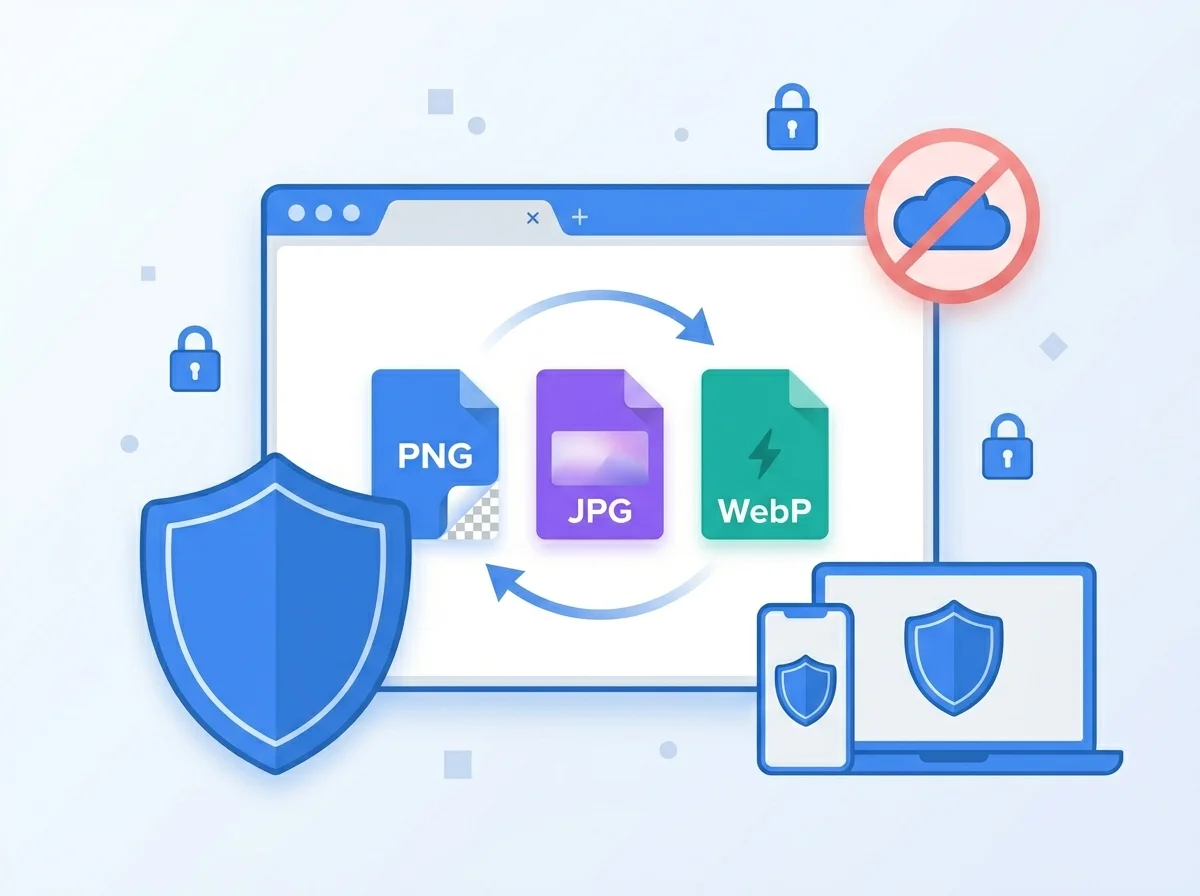
Most online converters upload your file to a remote server, process it there, and send it back. That’s slow and exposes your private images to a third party. Our image converter is different:
- 100% browser-based — your image never leaves your device
- No signup, no email, no watermark
- Unlimited conversions — no daily limits or paid tiers
- Batch processing — convert multiple files at once
- Works offline after the page loads
- Mobile-friendly — works on Android and iPhone too
If you handle sensitive images, client work, or personal photos, this matters. Your files stay on your device, period.
Tips for the best image quality when converting
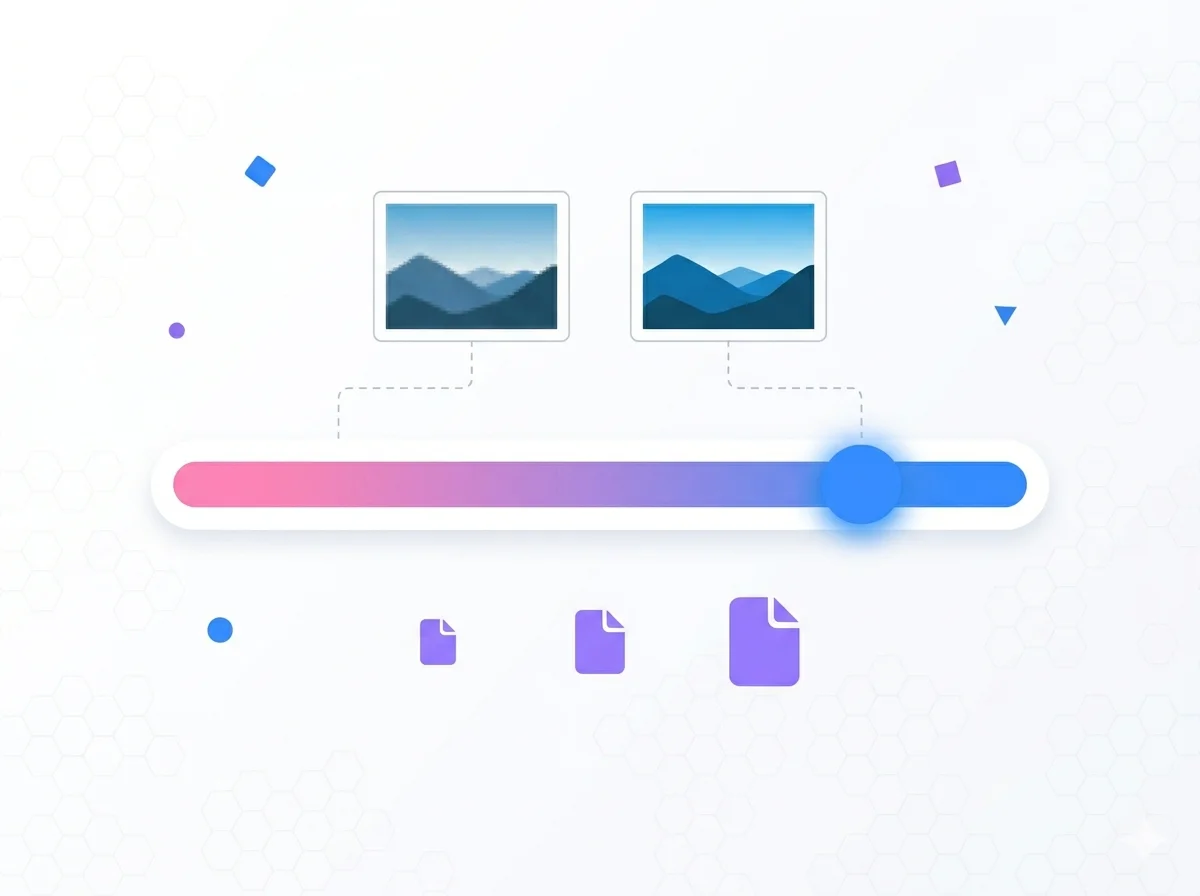
A few quick tips to keep your converted images looking great:
- Always keep the original file. Re-saving the same image multiple times stacks compression and reduces quality over time.
- Use 80–90% quality for JPG and WebP. Below 70% you’ll start seeing visible artifacts.
- Don’t convert lossy formats back to PNG hoping to “restore” quality. Once a JPG loses detail, it’s gone.
- For logos and icons, stick with PNG or lossless WebP. JPG compression will blur sharp edges.
- For website hero images and photos, use WebP to get the best speed-to-quality ratio.
Frequently Asked Questions
Is this image converter really free? Yes. There are no fees, no signups, no watermarks, and no daily limits. You can use this image converter as many times as you want.
Do you upload my images to a server? No. The conversion happens entirely inside your browser using HTML5 Canvas. Your images never leave your device, which makes this tool safe for private or confidential photos.
Can I convert PNG to JPG without losing quality? JPG is a lossy format, so some quality loss is unavoidable. But at 90% quality, the difference is usually invisible to the eye while the file becomes much smaller.
Does WebP work everywhere? WebP is supported by all modern browsers — Chrome, Firefox, Edge, Safari, and Opera. Some older apps may not accept it, in which case you can convert it back to PNG or JPG using this same image converter.
Can I convert multiple images at once? Yes. You can drag and drop several files into the upload area and convert them in one batch. Use the Download All (ZIP) option to save them together.
Does this work on mobile phones? Yes. The image converter works on Android, iPhone, and tablets through any modern browser like Chrome or Safari.
Will converting an image reduce its dimensions? No. Only the file format and compression change. The image’s width and height stay the same unless you choose to resize it separately.
What’s the maximum file size I can convert? There’s no fixed limit set by us — it depends on your device’s memory. Most phones and computers can comfortably handle images up to 50–100 MB.